Artwork guide
How to send us artwork that prints well.
Designing for an A3 sheet
An A3 sheet is 297 × 420 mm. Place your own pictures on it, or repeat one picture across it, and we cut round each one, kiss-cut, so they peel off the sheet one by one.
- Printable area. Pictures go inside the dashed line, a few millimetres in from the edge: the sheet is trimmed to A3 after cutting, so nothing should run to the edge.
- Our cutter’s marks. We print your sheet on larger paper with our cutter’s marks round it, then trim it to A3, so the marks never touch your design.
- Cut line. We draw it for you, 1 mm outside each picture. Two stickers’ cut lines are kept at least 2 mm apart, so each sticker takes its size plus 4 mm on the sheet.
PNG, JPG, WebP or SVG, 300 dpi at the size you place it. A PNG with a transparent background is cut round its own edge, whether you place it yourself or repeat it, and prints and cuts best; a JPG, or any picture without a transparent background, is cut as a box, or a circle if you choose. In an SVG, turn text into outlines first. A PDF or .ai can’t go on a sheet: save it as a PNG, or send it on WhatsApp and we’ll place it for you.
Laying out a whole sheet in your own design app? Download the A3 template:
PDFPNG
Keep everything inside the dashed line, hide the template before you save, and send the finished sheet to us on WhatsApp.
The rest of this guide is for stickers made to a size.
Files we take
PDF, PNG, JPG, WebP or SVG, up to 50 MB. An .ai works too if it was saved with PDF compatibility (Illustrator does that by default).
A picture (PNG, JPG or WebP) should be 300 dpi at the sticker's real size: a 50 mm sticker wants about 590 × 590 pixels, or about 640 × 640 with the bleed. Not sure? We check every file before printing and tell you if a picture is too small.
Bleed, cut line and safe area
- Bleed. Let the background run 2 mm past the edge, so no thin white rim shows if the cut drifts a little.
- Cut line. The sticker’s real size: where it is cut.
- Safe area. Keep words and logos 2 mm inside the cut, so nothing is lost.
No bleed? Send it anyway: we extend the background, or ask you if we can’t.
Templates
A template for each standard size on our price list, with the bleed, the cut line and the safe area drawn in.
| Sticker size | Circle | Square |
|---|---|---|
| 30 mm34 × 34 mm, 402 px | PDFPNG | PDFPNG |
| 40 mm44 × 44 mm, 520 px | PDFPNG | PDFPNG |
| 50 mm54 × 54 mm, 638 px | PDFPNG | PDFPNG |
| 60 mm64 × 64 mm, 756 px | PDFPNG | PDFPNG |
| 70 mm74 × 74 mm, 874 px | PDFPNG | PDFPNG |
| 80 mm84 × 84 mm, 992 px | PDFPNG | PDFPNG |
| 100 mm104 × 104 mm, 1228 px | PDFPNG | PDFPNG |





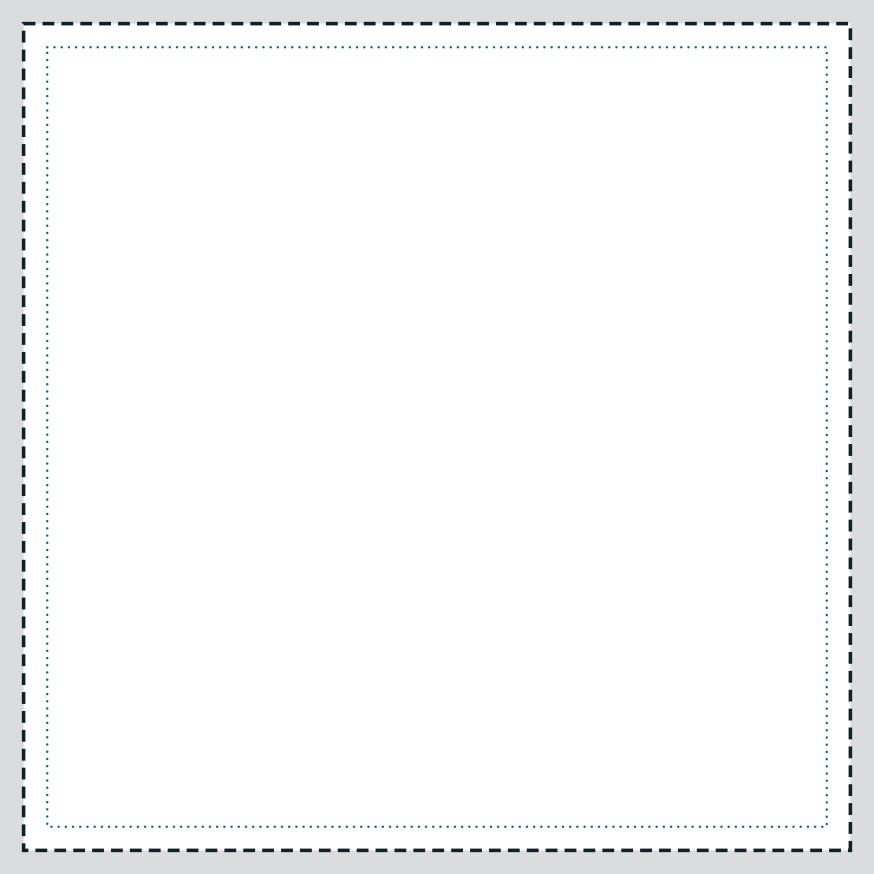

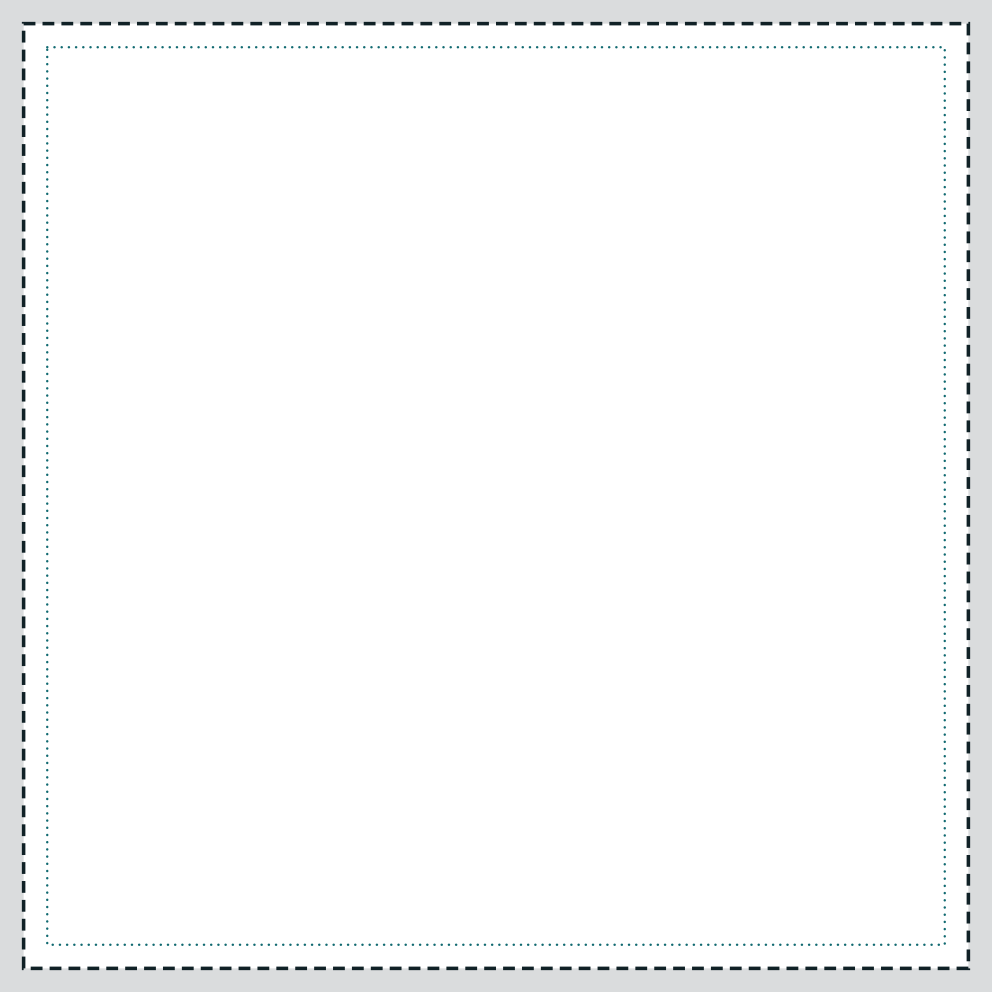

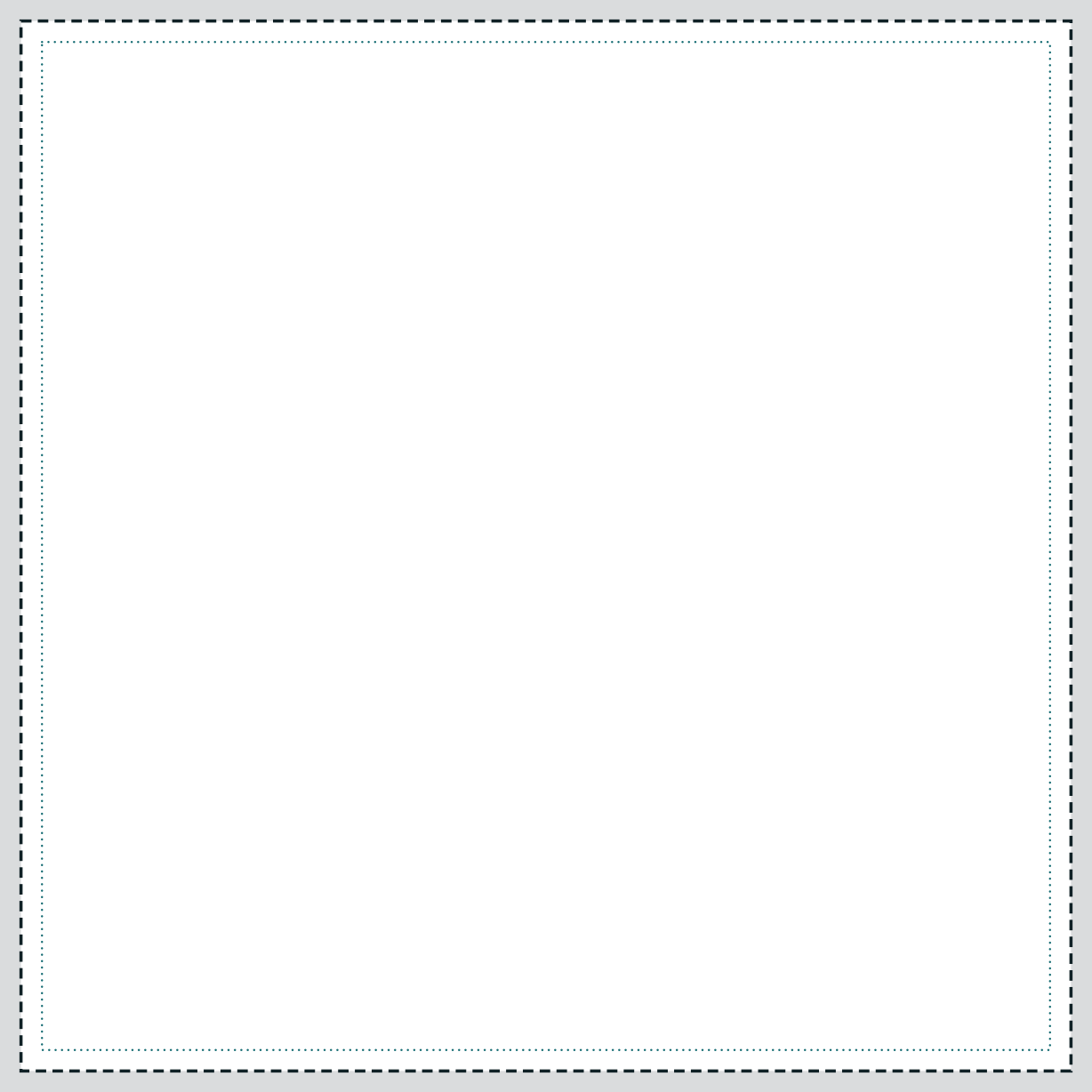
Put the template on its own layer above your design, and hide it before you save: the lines are guides, and anything left in the file is printed.
Rectangles and custom shapes
For any other size, add 2 mm on every side: a 50 × 30 mm rectangle is a 54 × 34 mm file, about 638 × 402 pixels.
For a custom shape, send a PNG with a see-through background, or a vector file. We draw the cut line around your design, and we may send you a proof on WhatsApp before printing. Want a border around it? Say so in the note.
Colour and text
Printed colour is a little softer than screen colour: screens glow, ink doesn’t. RGB files are fine; we convert them for print.
Where your design is white, nothing is printed: on Transparent it stays clear, on the silver materials it stays silver, and on Kraft Paper it stays brown.
In a PDF or an .ai, turn text into outlines, or send a PNG. From Canva, download “PDF Print” with “Crop marks and bleed” ticked.
Not sure? Ask us to check your file
Send it on WhatsApp before you order, and we’ll look at the size, the sharpness and the cut. The spelling and wording are yours to check.